

In this Cim50 & Sage 50 Support Newsletter:
🌟 Employee Spotlight
🧭 January Housekeeping Tools
💡 Hints & Tips
🏆 Company Achievements
🌍 CIM Challenge

🛠️ January Housekeeping Tools
Cim200 –
Archive old work orders (Cancelled & Closed status)
Check Non-Working Days and Planning Calendars
Sage 200 –
Review/Validate your Financial Statement Layouts
Check & correct customer/supplier credit settings
Reconfirm user permissions after any staff changes
🌟 Support Help
The Support Team
| When raising a ticket, including these details speeds triage: |
Product & version (Sage 200/Cim200)The exact menu path or screen and any error message When did the issue start and is it affecting all users or a single user |
We’ll route it straight to the right specialist and get you moving quickly. |
🏆 Company Achievements
Support Calls November 2025
In 2025, the Support Team resolved approximately 2,500 calls for Sage 200 and Cim200 queries, consistently meeting SLA response times and maintaining our high customer satisfaction levels. Thank you for continuing to trust us with your systems. We are proud to support you!
💡Hints & Tips
Sage 200 – Disconnected Logins
Disconnected Logins occur when a user crashes out of a screen or the entire program while using Sage 200, causing the screen to lock. When you or another user tries to access this screen, such as a stock record, sales order, or purchase order, a message similar to the one below is displayed.

To clear the disconnected login, follow these steps:
1. Go to Settings
2. User Login Status
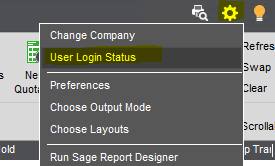
Highlight all records under the Disconnected Logins tab and select Log Off.

Sage 200 – Access Denied
The message below may appear if you’ve been away from your desk for a while and left Sage 200 open, or if you closed a Remote Desktop Session without shutting down Sage 200. Often, restarting Sage 200 will resolve this issue. Another suggestion is to check your power and sleep settings (your IT Support can assist with this).
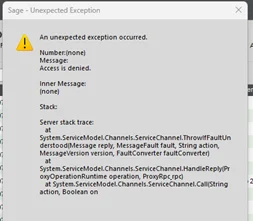
If the message persists, we recommend following the steps below. If you can’t find the AppData folder, it might be hidden; this guide can help.
1. Close Sage200
2. Open Windows Explorer
3. Browse to the following location – C:\Users\’Your Username’\AppData\Local
4. Rename any folders starting with Sage, for example SageOLD
5. Browse to the following location – C:\Users\’Your Username’\AppData\Roaming
6. Rename any folders starting with Sage, for example SageOLD
7. Open Sage200
🌍 CIM Challenge
An Amazing 2025
What an incredible year! From walking the stunning Jurassic Coast and lighting up Southampton on a nighttime stroll, to baking cakes, cookies, brownies, and flapjacks, and even teeing off 36 times in a single day, we’ve packed in some amazing moments. We’re thrilled to share that together we raised £1,437 for Cancer Research UK. Every effort feels even more worthwhile knowing that James’s partner has completed her treatment and is now enjoying a well-deserved break in Italy.
📞 Contact Us
☎️ 02382 026969
📧 support@cim-software.co.uk
⏰ CIM support desk working hours are:
Monday – Thursday: 08:00 – 16:30
Friday: 08:30 – 16:00