When there is a requirement to allocate stock to Sage 50 Accounts Sales Orders, this is carried out via the New Picking List feature.
When the New button is clicked, select Picking List from the dropdown, the New Picking List screen will then be displayed.
To create a picking list, you first need to search for the item(s) you want to pick. To do this, you can enter/select the appropriate criteria in the ‘Find Sales Order’ section at the top of the screen.
This allows the ability to not only search for a specific Sage 50 Accounts Sales Order or Customer, but also Product Code, which is particularly useful if the Sales Order and Customer is unknown or multiple Sales Orders for the same Stock item and customer exist. There is also the option to search within a certain Due Date range, for example what is due today and/or overdue.
Note: When picking multiple orders for the same customer, if the delivery addresses are different, separate Picking List records will be created for each delivery address.
Once you have entered your search criteria, press the Display button to populate the Sales Order Lines (Available to Pick) grid with all outstanding order lines that match your search criteria.
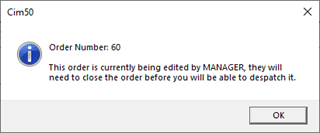
Note: You cannot pick an order that is being edited. If your criteria search results in an order being pulled through that is currently being edited, you will be presented with the following message:
This message displays the order that is being edited, and who is editing the order. That person will need to close the order before the despatch can be processed.
The sales order picking list screen is broken down into the following sections, and the fields within them are described below:
Picking Info
This area allows for the Requested Despatch date to be entered, which will default to today’s date, and Notes that relate to the picking list.
Sales Order Lines (Available to Pick)
In the grid you will see all the Sales Order Lines that match your search criteria entered. Depending on your search criteria, you may see multiple lines from multiple orders, allowing you to despatch multiple Sales Orders from the same customer at once.
The grid shows the Sales Order Number, Line Number, Customer Reference, the Product Code and Description, Due Date, along with the Quantity Ordered, Quantity Outstanding and Available (Free Stock).
The quantity being picked can be entered into the ‘Pick’ column.
In the bottom left-hand corner of the screen is the Pick Maximum Available/Required button. When clicked, this will prefill the Pick Quantities to match what is outstanding and available, speeding up data entry.
If the quantities defaulted by the system are not as required by you, these can be over typed accordingly.
Once the pick quantities have been entered, if the item is Traceable, the Pick Batch or Serial Number screen will appear, allowing the selection of Batch or Serial Numbers.
Within this screen there is the ability to review, select and enter a Pick Quantity against the required Batch or Serial Numbers to match the highlighted Despatch Quantity. Alternatively, there is the option to select the Auto-Select FIFO (First In First Out) button which will pre-fill the quantities on this basis, however these can be changed manually if required.
Another option is to automate this process by checking the ‘Auto Select Traceable Items’ in Settings> Stock Control Settings> Delivery Notes. This will result in the system auto selecting traceable items on a FIFO basis, and not giving you the option to amend.
Once the Pick quantities match, the Confirm button will become active, and you will be returned to the ‘New Picking List’ screen with the Pick Quantities completed, and the Available Quantities downdated. There is also the option to Cancel which will zero the Pick Quantity on the Picking List screen.
Should you wish to cancel the pick at any time. Click the Cancel button in the right-hand corner of the screen
Once you are ready to proceed with the creating the picking list, press the Create Picking List button.
Note: If the customer is currently above their credit limit, a message will be displayed asking the user if they would like to continue with the pick? If ‘No’ is selected the Delivery Note will be cancelled and the user will be returned to the Delivery Note List.
When the Picking List record is created, it will be available in the Delivery Notes list, allowing the Amendment, Deletion and Printing of Picking List.
The stock picked will now be recorded against the Stock Items (Quantities Allocated), Traceability (Where relevant) and Sage 50 Accounts Sales Order (Status, Allocated quantities on the Sales Order Lines).
Picking Kits (Kit BOMs)
If you are picking a sales order, you may see within the main picking grid the “quantity available” column displays ‘Kit’ against certain items. This indicates the item being picked is defined as a Kit within the Bill of Materials module.
At the point the system processes this picking list, you will be presented with a BOM Build screen.
This will allow you to process a build for the Kit Item, ultimately booking the kit contents/component items out of stock, and booking the finished Kit item into stock, and automatically picking it.
Information on processing a BOM Build is available here.
Note: Where applicable, when picking Traceability will be taken into account for Components and Finished Kits.
Analysis Codes
From Cim50 v2025 onwards you are able to define up to 20 analysis codes on Picking List/Delivery Note header records, as well as Picking List/Delivery Note lines.
The functionality included mirrors that available elsewhere in the system.
You can edit Picking List Analysis Values by clicking the Analysis tab button in the left hand menu.
Picking List Line Analysis Values can be updated by adding the values as columns to the Sales Order Lines grid using the Columns button, or by pressing the Item Analysis Code button located beneath the Sales Order Lines grid.